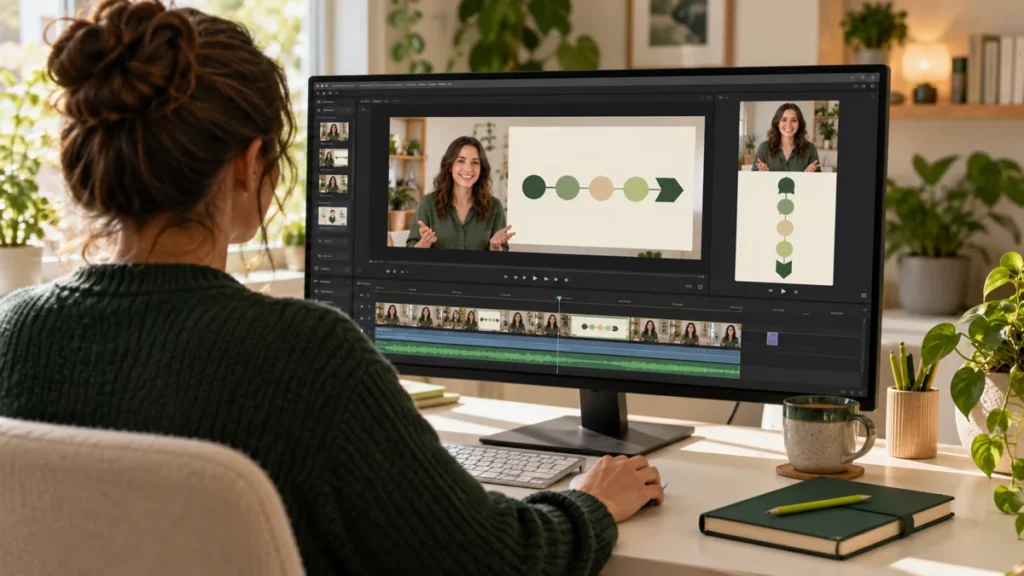
Four kinds of webinar content tend to work as short videos of their own: an explanation of one concept, a demonstration of one task, a question with its answer, and a case explained with what supports it. A single slide rarely does. A slide often needs the speaker’s words around it, and many slides belong to the same point.
This guide covers what is particular to webinar recordings: choosing segments, handling slides and screen demos, keeping the context of questions, checking what’s out of date, and checking privacy and permissions.
What makes a webinar segment worth its own video
| Content type | What to take | Picture | To confirm |
|---|---|---|---|
| Concept explanation | One concept, with the premise it needs | The speaker, with the slide when it carries the point | Terms and any figures |
| Demonstration | The steps needed to finish one task | The part of the screen where the action happens | Whether the interface is still current |
| Question and answer | The question, plus the answer’s explanation, conditions and conclusion | The question as text or a short accurate line, then the answer | Whether the asker’s name or details can be shown |
| Case explanation | The case and what supports it | The slide or figure that shows the basis | The source of the data, and permission to use the case |
A “complete” demonstration means enough steps to finish one understandable task. It doesn’t mean keeping the whole demo. A “complete” answer keeps the explanation, conditions and conclusion the question needs. It can still be tightened, and it doesn’t have to be kept word for word.
How many segments a webinar yields depends on the webinar and the agreed scope. For how to judge a segment in general, the same principles as for any long recording apply. Only the points specific to webinars are covered here.
Speaker, slides and screen: what the viewer needs to see
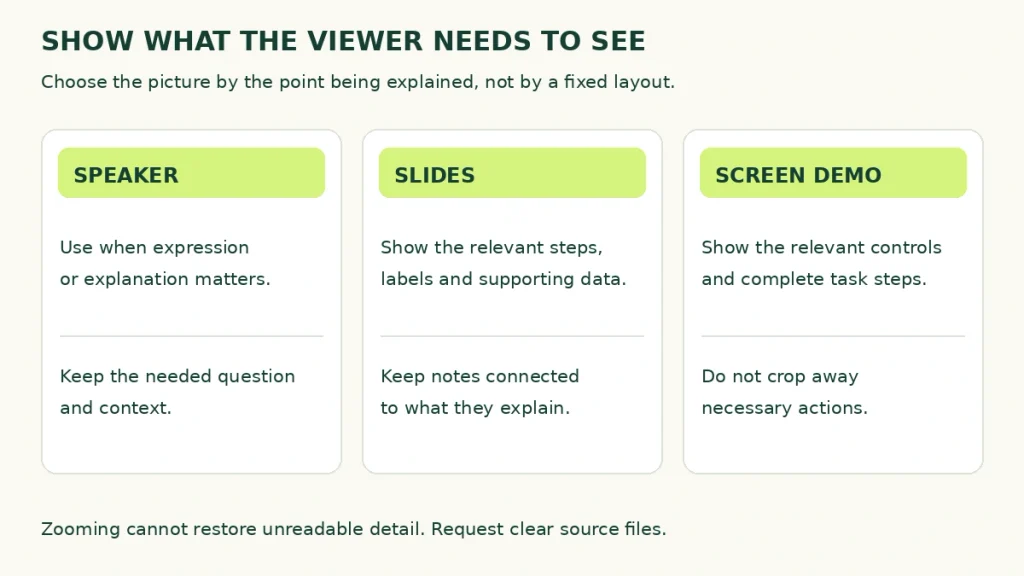
The picture follows what the viewer needs to see at each moment. Sometimes it’s the speaker, sometimes the slide, sometimes part of the screen.
Dense slides
A slide with a lot of text can be enlarged in part or laid out again, but both have limits:
- Enlarging can’t restore detail. If the slide in the recording is low resolution, zooming in doesn’t make it sharp. Ask for the original slides or another clear source file.
- Re-laying out has to keep the relationships. Charts, figures, notes and conclusions must stay connected to what they refer to. Don’t move a note away from the step it belongs to, or separate a figure from its label.
- If the source is still unclear, talk about alternatives with the client. Don’t assume AI can repair an unreadable slide.
Software demos
A full screen often has more on it than a short video can show. Zoom in on the area where the action happens, and keep the steps a viewer needs to follow. Don’t drop a step to make the picture fit. If part of the interface was never clearly recorded, it can’t be recovered by editing.
Horizontal or vertical
Follow the format that was agreed for delivery. Two things to avoid:
- Cropping away needed information just to get a vertical frame.
- Switching to a horizontal delivery without confirming it.
Options include laying out the slide again, zooming in on part of the screen, using other material, or changing the form of the video. The work involved and the delivery scope are agreed between both sides.
Keep the context
A short video has to make sense without the rest of the webinar. Supply the topic, the question, the terms and any premise the segment depends on, using a short, accurate line of text. Don’t give the speaker a view they didn’t express.
Waiting time, opening greetings, repeated points and event housekeeping can usually go. When you cut them, keep any condition or qualifier that affects the meaning.
Questions from the audience
Keep the original question, or show it as an accurate short line of text. Don’t invent a question, or an asker, to introduce an answer.
Check that it’s still current
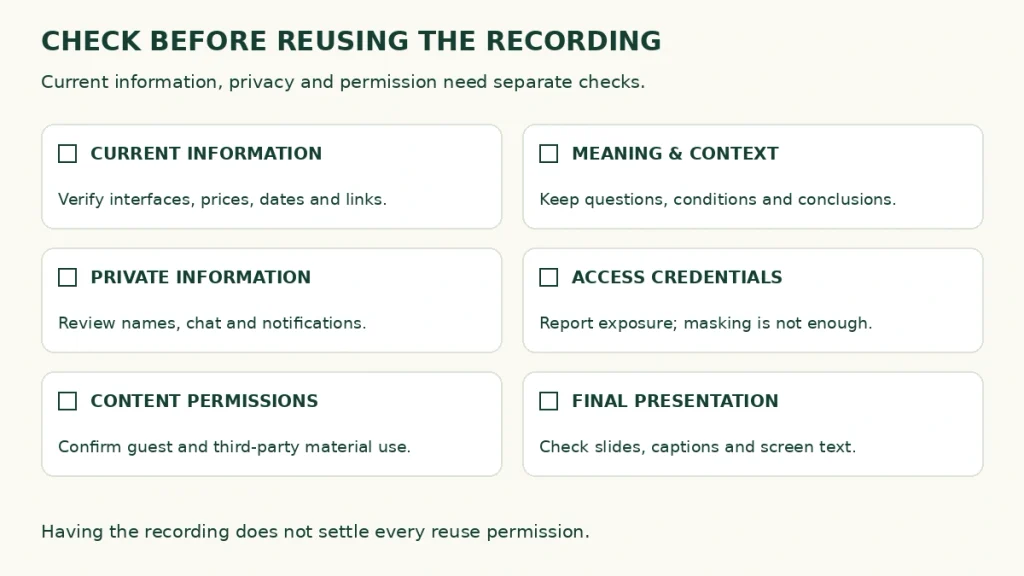
A recording captures what was presented on the day. Interface screens, prices, offers, dates, event links and figures may have changed since.
- Separate the two cases. Some content still works as a record of what was said at the time. Other content is no longer suitable for the current purpose.
- Don’t rely on a label alone. Adding a date to an outdated claim doesn’t make it suitable for current use.
- Don’t change what was said. Added text must not contradict the speaker, and it must not quietly turn an old statement into a new one. A recording can’t be presented as a current demonstration if the product has changed.
- Ask. If something needs replacing, re-recording or leaving out, raise it with the client for a decision.
A recording shows what was said. It doesn’t show it was right. Facts and figures need confirmed supporting material.
Privacy and permission
This is a practical check, not legal assurance.
Privacy in the picture. Look for attendee names and emails, the chat panel, notification pop-ups and client information. Remove or cover them where needed. Doing so doesn’t settle whether you may use the content itself.
Credentials. If a password, token or other working access credential appears in the recording, tell the person responsible for the content so they can deal with the exposure. Covering it in the finished video doesn’t undo the exposure in the source recording.
Permission. Check the guests, third-party slides, images, music, case material and demo content for the planned use. Having the recording of an event isn’t the same as having the right to reuse everything in it.
A webinar handoff checklist
Needed to start
- The complete recording.
- Confirmation that the content may be used for the planned purpose.
- The agreed scope.
Provide when the finished video will use them
- Correct spellings of names, terms and product names.
- Current information on anything mentioned: prices, dates, links, interface.
Provide if available
- Original slides or demo files.
- Separate recordings of the speaker and the screen.
- A transcript.
- A list of moments the team already has in mind.
Two hypothetical examples
These are hypothetical examples, not client projects.
Dense slides: a team handover process
A speaker walks through one slide titled “Handing over a task”. It has five steps, and each has an owner and a short note.
- What’s kept: the five steps, each with its owner and its note, in order. The speaker’s explanation of why the steps exist.
- How: show the steps one at a time, or lay the slide out again, keeping each note attached to its step.
- From the recording: the speaker’s words and the slide as it appeared.
- May need the original slide: if the text in the recording is too small or blurry to read. If a redrawn version is needed, that’s separate production to agree on.
A software demo and a question
In a hypothetical task management tool, an attendee asks how to assign a recurring task, and the speaker demonstrates it.
- What’s kept: the question (as the attendee asked it, or as an accurate short line), the part of the screen where the action happens, and each step needed to finish the task.
- From the recording: the question, the demonstration and the speaker’s words.
- Flag for the client: in the recording, a menu looks different from the current version of the tool. Mark it “to confirm”. Don’t present the recording as the current interface.
- If the interface has changed: any replacement recording or material must be assessed and included in the agreed scope.
A short checklist
Before you start
- Each planned segment is about one concept, task, question or case.
- The delivery format, horizontal or vertical, is agreed.
- For dense slides, the original slides have been requested.
- Anything that may be outdated, such as interface, prices, dates and links, is flagged for the client.
- Permissions for guests, third-party slides, images, music and demo content are confirmed, and any credential in the recording has been reported.
Before delivery
- Text, charts and figures on screen are readable, and their relationships are intact.
- Captions are checked against the recording and the confirmed information. An automatic transcript can help you find a moment, but it isn’t a source of truth.
- Names, terms and product names are spelled as confirmed.
- On-screen text is checked for typos and old labels.
- Nothing is visible that should have been covered, such as attendee names, chat or notifications.
- Questions are kept as asked or shown accurately, and nothing outdated is left unresolved.
FAQ
Can every slide become a short video?
No. A slide often needs the speaker’s explanation, and several slides can belong to one point. Choose segments by whether they explain one thing completely.
How many short videos can one webinar give?
It depends on the webinar and the agreed scope. There’s no standard number.
Can I reuse a webinar I hosted?
Having the recording isn’t the same as having the right to reuse everything in it. Check guests, third-party slides, images, music and demo content for the planned use.
Send your webinar recording to KiwiUGC
If you have a webinar recording you have the right to use, you can send it to KiwiUGC, which produces short videos from it within the scope you confirm. The form, number, revision rounds and timing of the deliverables are agreed for each project. Extra production, such as redesigned slides, animation, translation, voice-over or a new recording, needs to be assessed and confirmed first. It isn’t included by default, and KiwiUGC doesn’t commit to taking it on.
For related guidance, read the podcast repurposing workflow.